
Coding that students can see working.
Invention Engine Blocks is a free, browser-based coding app where students use visual blocks to control real lights, sounds, sensors, displays and movement. There is no software to install, no student accounts to manage and no subscription cost.
Need setup help? Coding app support
No installs. No student data. No extra cost.
Invention Engine Blocks runs in the browser, so teachers do not need to install software, manage student accounts or pay for a coding platform subscription.
Web-based app
Students open Invention Engine Blocks in a supported browser.
Nothing to install
No software to download or install. Students simply open the browser-based app and download their finished program to the Hub.
No student data collected
Students do not need accounts, logins or profiles to start coding.
Free to use
There are no coding platform subscriptions or ongoing app fees.
Built for the Hub
Students build their program in the browser, then download the finished code to the Invention Engine Hub.
Easier for school IT
Less setup, fewer permissions and no student account management.
Students build programs with visual blocks.
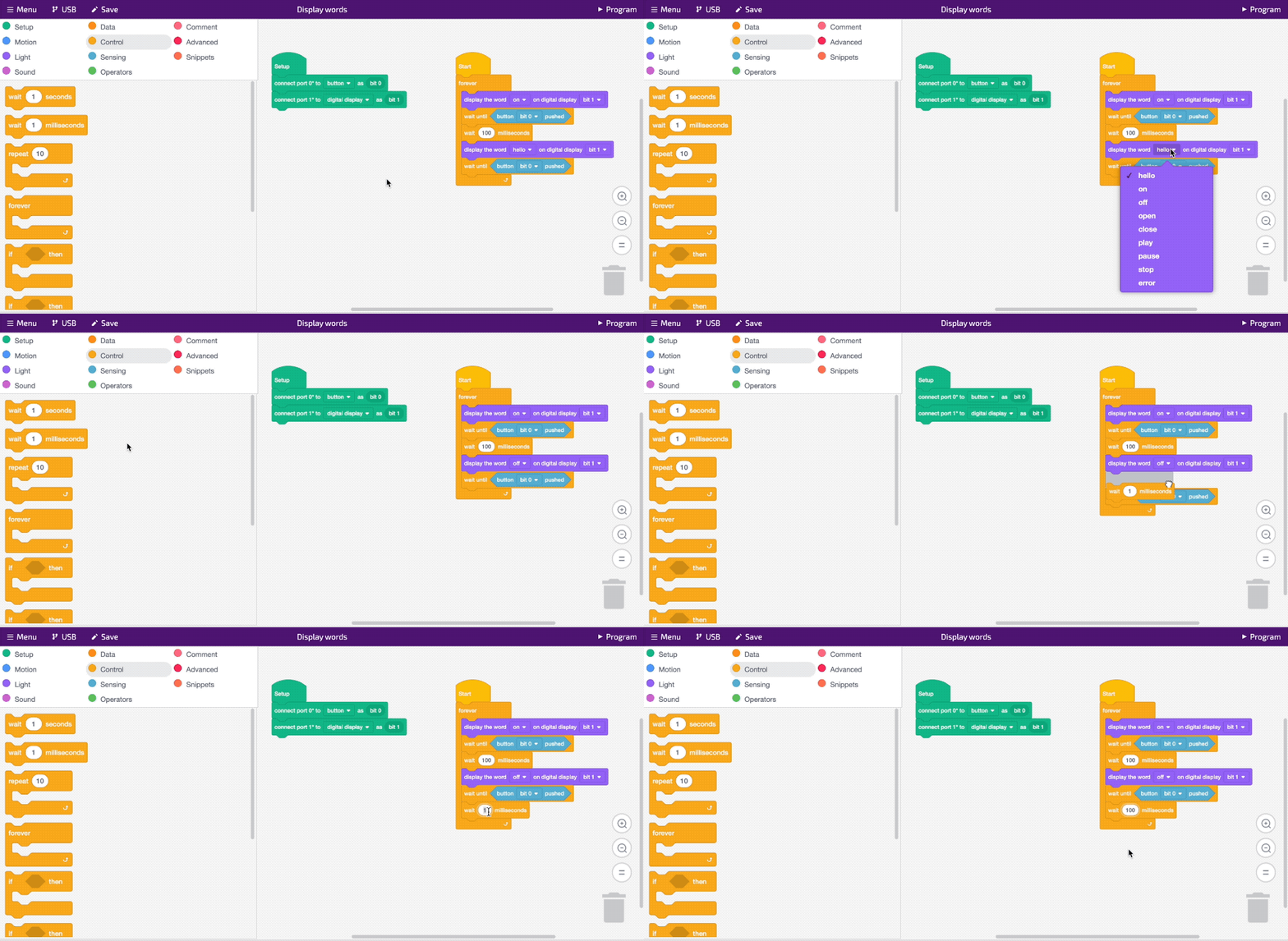
Instead of typing syntax, students drag coding blocks together and focus on logic, behaviour and problem solving.
Drag blocks
Students build programs visually.
Set up the bits
Students tell the app which bits are plugged into which Hub ports.
Add behaviour
Code controls what the invention should do.
Download to the Hub
Students send the program to their physical invention.
The code controls something real.
Students are not coding in the abstract. Their code makes lights turn on, sounds play, sensors respond, displays change and motors move.
Input
What the invention senses, such as a button press or sensor reading.
Process
The Hub follows the student’s program.
Output
The invention responds with light, sound, movement or display feedback.
A simple workflow students can follow.
The coding process gives students a practical path: plan, set up, build, download, test and improve.
Plan the program
Students decide what the invention should do before building the code.
Map the bits to ports
Students use the bit map to match each physical bit to a Hub port.
Add setup blocks
Setup blocks tell the Hub which bits are connected and how to use them.
Build the code
Students use visual blocks to create sequence, loops, conditions and behaviours.
Download to the Hub
The finished program is sent from the browser-based app to the Hub.
Test and debug
Students test the real invention, fix one thing at a time and try again.
You do not need to teach coding from memory.
The app, lesson guides and student resources help students build, test and fix their code step by step.
Debugging is built into the learning.
When something does not work, students can test one change at a time, check the Bug Box and improve their program. Debugging is not failure. It is how students learn.
Check the Bug Box
Start with the app messages.
Test one change
Make one fix, then try again.
Match ports
Check setup blocks against the physical Hub.
Download again
Send the updated program to the Hub.
Try, fix and improve
Iteration is part of the process.
What do you need to use the coding app?
Your device will require a USB port and a Chrome-based browser to work correctly.
Browser-based app
Invention Engine Blocks runs in the browser.
Chrome-based browser
Use a Chrome-based browser for correct operation.
USB port
The device needs a USB port to connect to the Hub.
Invention Engine Hub
Students download programs to the Hub.
No subscription
The app is free to use.
Need setup help?
Use the Getting Started guide or contact the Microbric team.
Unit 1 starts with coding foundations.
Students begin with the basics, then use code to make real inventions respond.
Students learn the coding ideas they need, without turning this page into the full lesson pathway.
Ready to try coding with real inventions?
Open the app, follow the lessons or start with Unit 1 when you are ready for classroom rollout.