
Support
Get started without the guesswork.
Find the guides, downloads and answers you need to run Invention Engine confidently in your classroom.
Start with setup. Check the Hub, bits and app. Use the guides when you need the next teaching step.

Getting started
Start with the simple checks.
Use this section before your first lesson, when a Hub is not connecting, or when students need the next setup step.
Set up the Hub
Plug the Hub into the computer and make sure it is fully connected before downloading code.
Download guide →Connect the bits
Check that each bit is firmly connected and matches the port used in the setup block.
Meet the bits →Open the app
Use Invention Engine Blocks in a browser to build and download programs to the Hub.
Open coding app →Build with cardboard
Use the stencil, punch tools and rivets to attach the bits neatly and securely.
Learn building tools →Teacher guides
The guides show what to do next.
Use the teacher guides for lesson purpose, delivery suggestions, prompts, answers, tips, troubleshooting and assessment support.
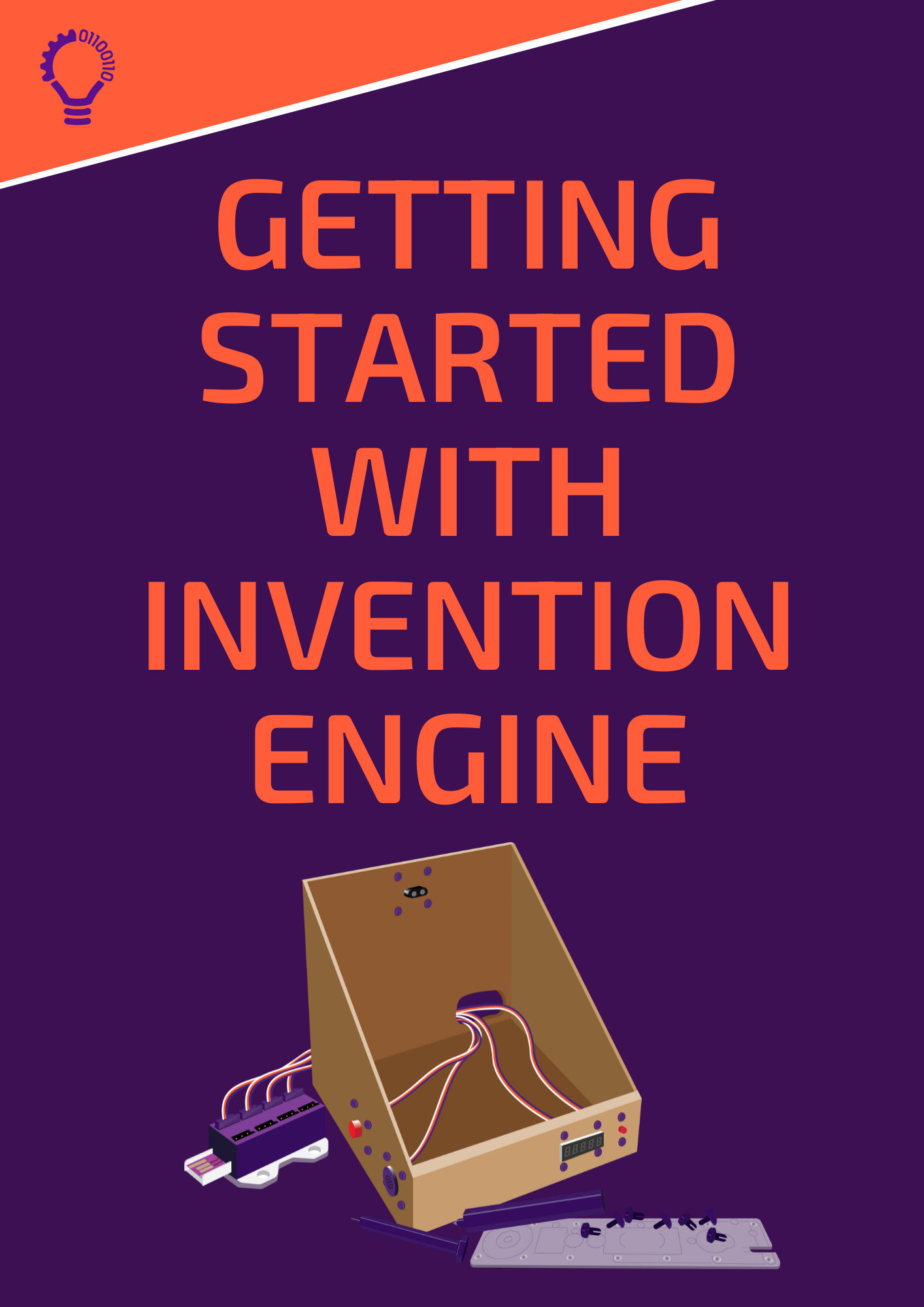
Unit 1 teacher guide
Support for first coding lessons, setup, prompts, answers and classroom delivery.
Unit 2 teacher guide
Support for engineering, invention cycle work, new bits and structured inventing.
Unit 3 teacher guide
Support for open invention projects, proposals, testing and showcase work.
Need help choosing?
Start with Unit 1 if your classroom is new to Invention Engine.
Student guides
Student guides keep the class moving.
Student-facing guides give learners activities, prompts, planning space and steps to follow.

Unit 1 student guide
Activities for programming basics, inputs, outputs, loops, conditions, sensing and data.
Unit 2 student guide
Activities for the invention cycle, new bits, movement and engineering thinking.
Unit 3 student guide
Prompts for problem finding, empathy, project planning and open invention work.
Invention Journal
A structure for defining, designing, planning, coding, making, testing, iterating and reflecting.

Coding app support
Get the code running.
When code does not work, start with setup blocks, port numbers, power and the Bug Box. Test one small change at a time.
Use Chrome
Open the web app in a Chrome-based browser and connect the Hub.
Check setup blocks
Make sure the selected bit matches the bit plugged into the Hub port.
Read the Bug Box
Look for messages before downloading or changing the program.
Test one change
Change one block, download again and check what happens.
FAQs
Quick answers for common questions.
Start here when a teacher, coordinator, IT team or purchasing team needs a simple answer.
What should I do first?
Start with the Getting Started guide. Then open the coding app, connect the Hub, check the setup blocks and run one simple program before starting a full lesson.
What devices do I need?
Use a computer with a USB port and a Chrome-based browser for the Invention Engine Blocks app. Open the app at inventionengine.app.
Does Invention Engine need a subscription?
No. The coding app and downloadable teaching resources are available without a subscription.
Which bundle should a new classroom start with?
Start with Unit 1. It includes the Hub, building tools and starter bits for a new classroom. See Unit 1.
How many students does a bundle support?
Each classroom bundle supports 10 students. View classroom bundles.
Can students reuse the electronics?
Yes. Students can remove the Hub and bits from cardboard builds, reuse them and keep improving or creating new inventions.
My program downloads, but the bits are not responding.
Check that each bit is firmly connected, plugged into the correct Hub port and matched correctly in the setup blocks. Also check power and the Bug Box.
Where can I learn how the building tools work?
Use the building tools page to learn how students attach bits to cardboard with the stencil, punch tools and rivets. Learn building tools.
Can I get a quote or submit a school enquiry?
Yes. Use the contact form and tell us what your school needs. Contact support.
Where are shipping, warranty and school credit terms?
Use the school purchasing links for school credit terms, shipping information and warranty and returns.

Contact support
Still stuck? Ask us.
If you cannot find what you need, contact us and we will help you keep the lesson moving.
Include the unit you are using, the device and browser, what the Hub is doing, which bit and port you are using, and any Bug Box message.